Documentation
Welcome to Modality
Modality is the all-in-one event platform for venues, event producers, artists, and brands and creators. This guide covers every feature in detail to help you get the most out of the platform.
Quick Start
Get up and running in under 5 minutes.
- 1
Create your workspace
Sign up with Google and your workspace is created automatically. Invite team members from Settings.
- 2
Import your contacts
Upload a CSV or add contacts manually. Map fields to our schema during import.
- 3
Create your first event
Set up ticket types, customize your public page, and start selling tickets.
- 4
Connect your tools
Link Stripe for payments. Send emails natively through Modality, or connect an ESP (Brevo, Mailchimp, Klaviyo).
Core Concepts
Workspaces
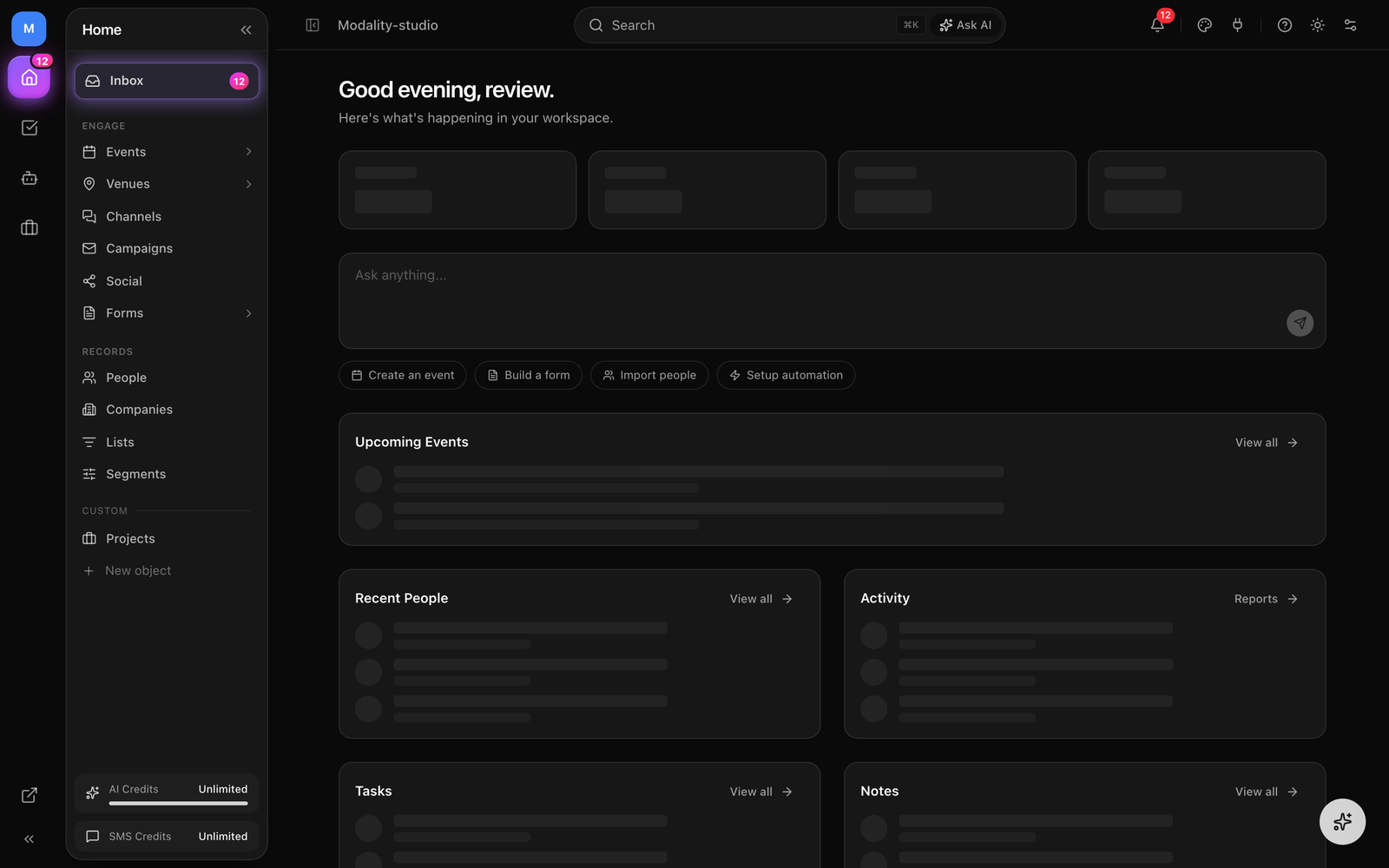
A workspace is your team's environment. All data (contacts, events, forms, campaigns) is scoped to a workspace. Each workspace has its own members, roles, billing, and integrations. You can switch between workspaces or create new ones from the sidebar dropdown.
Multi-tenancy
Every record in Modality belongs to a workspace. This ensures complete data isolation between organizations. Team members can have different roles (Owner, Admin, Marketer, Event Manager, etc.) controlling what they can access.
AI Credits
AI features are powered by credits. Each plan includes a monthly credit allocation. Credits are consumed when you use the AI assistant to create events, forms, manage contacts, or run workspace commands. Usage is tracked in Settings → Billing.
Events & Ticketing
Create and manage events with full ticketing, checkout, and check-in capabilities.
Creating Events
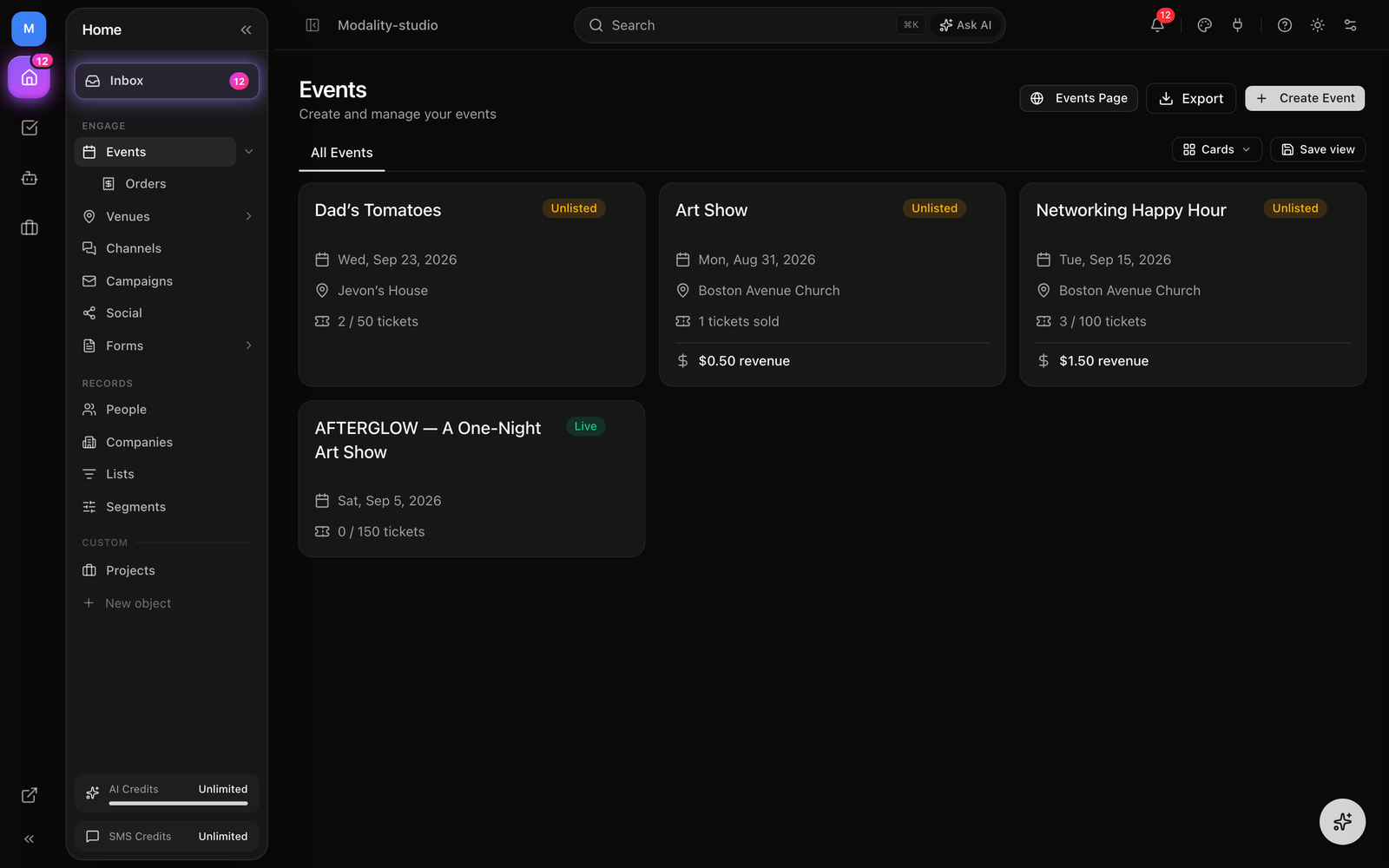
Navigate to Events and click "New Event." Fill in the event details including title, description, date/time, venue, and optional artist lineup. Events start as DRAFT and can be published when ready.
Ticket Types
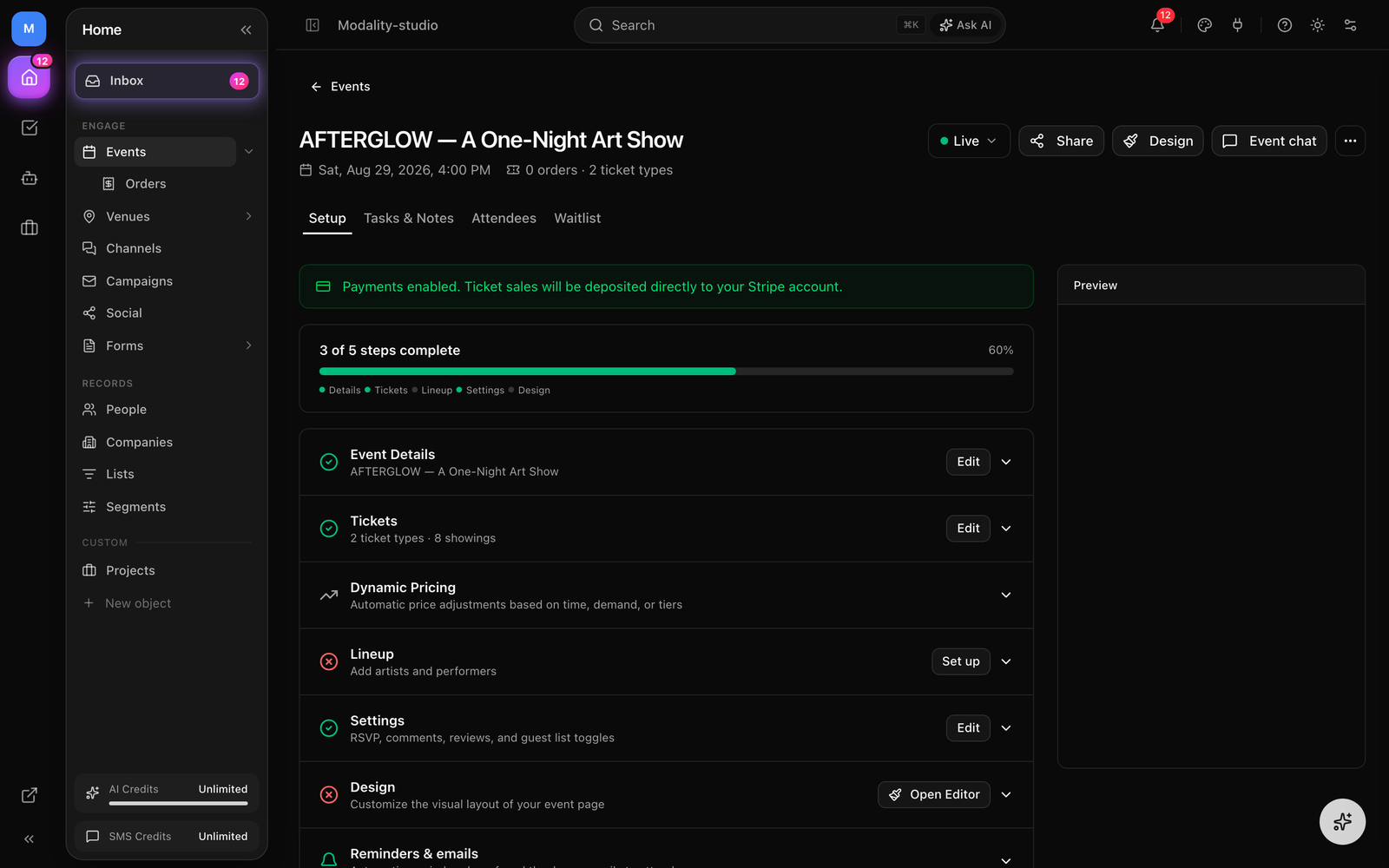
Each event can have multiple ticket types (General Admission, VIP, Early Bird, etc.). Set individual pricing, capacity limits, and descriptions for each. Prices are in USD and charged via Stripe. A platform service fee (0.5%–1.9% based on your plan) is added to paid tickets.
Public Event Pages
Published events get a public page at /event/your-event-slug. These pages include the event description, media, artist lineup, Spotify/Apple Music embeds, and a checkout section for purchasing tickets.
Checkout & Payments
Ticket purchases are handled through Stripe Checkout. Buyers provide their email and name, select ticket quantities, and are redirected to Stripe's hosted checkout. Free events skip Stripe and complete immediately.
QR Code Tickets
After purchase, each ticket gets a unique QR code sent via email. Organizers scan QR codes at the door using the check-in endpoint, which marks tickets as USED and prevents duplicate entry.
People & CRM
The CRM is the core of Modality. Every interaction, ticket purchases, form submissions, campaign clicks, flows back to the person record.
Spreadsheet-Style Table
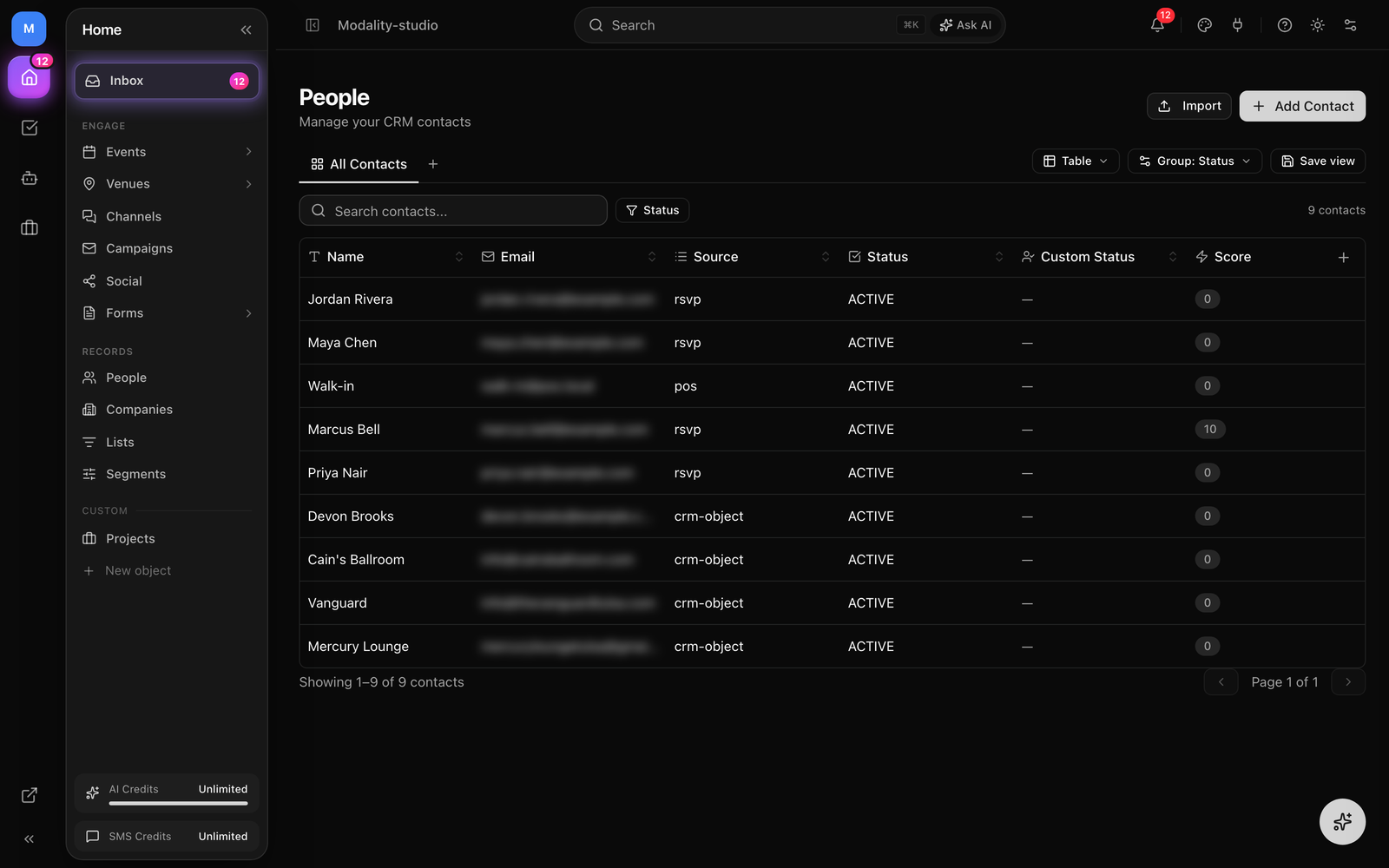
View all people in a powerful spreadsheet-style table with inline editing, keyboard navigation (Tab, Arrow keys), sortable columns, and resizable widths. Group by any field (status, tag, select fields) for Kanban-style views.
Record Detail Panel
Click the expand icon on any row to open a slide-out detail panel on the right. Edit all fields inline, navigate between records with prev/next arrows, and view the full record without leaving the table.
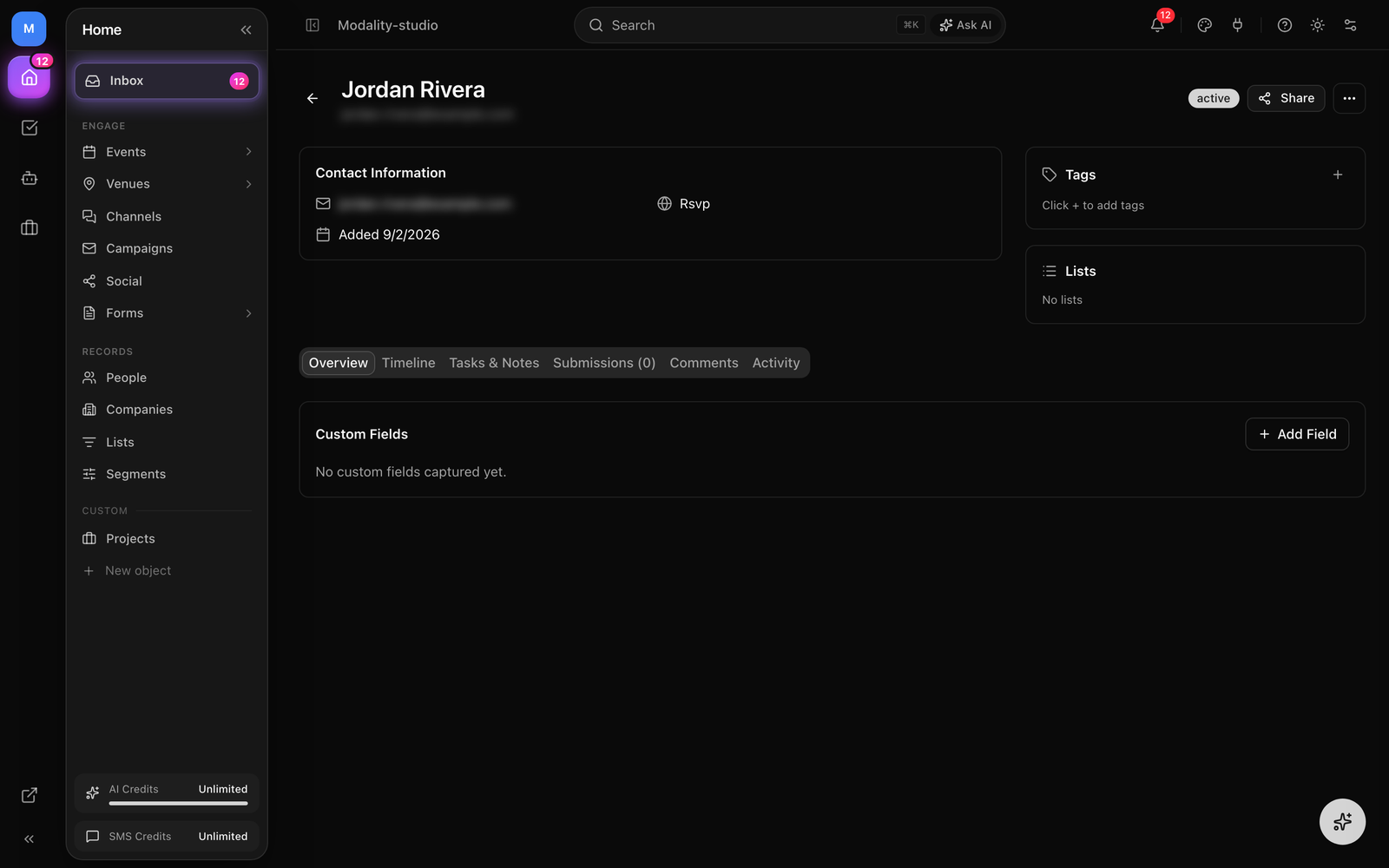
Right-Click Context Menu
Right-click any row for quick actions: expand record, duplicate, copy link, or delete. Works on all object types.
Tags & Lists
Tags are flexible labels (VIP, speaker, newsletter). Lists are groups for targeting campaigns, create them from the toolbar, add people in bulk, and use them as campaign audiences. Both available as toolbar popovers with inline creation.
Custom Fields
Extend the people model with custom fields, text, number, date, select, multiselect, URL, email, rating, currency, checkbox, and more. Manage fields from Settings → Fields. Custom fields appear in the table, filters, and saved views.
Import & Export
Import from CSV with column mapping and multi-object routing, split one CSV across People, Companies, and custom objects simultaneously. Export selected records to CSV from the table's bulk action bar.
Activity Timeline
Every person has a chronological activity feed: form submissions, ticket purchases, email sends (with open/click tracking), tag changes, list memberships, and automation triggers.
Forms
Build custom forms for lead capture, registrations, surveys, and payments with a live visual editor.
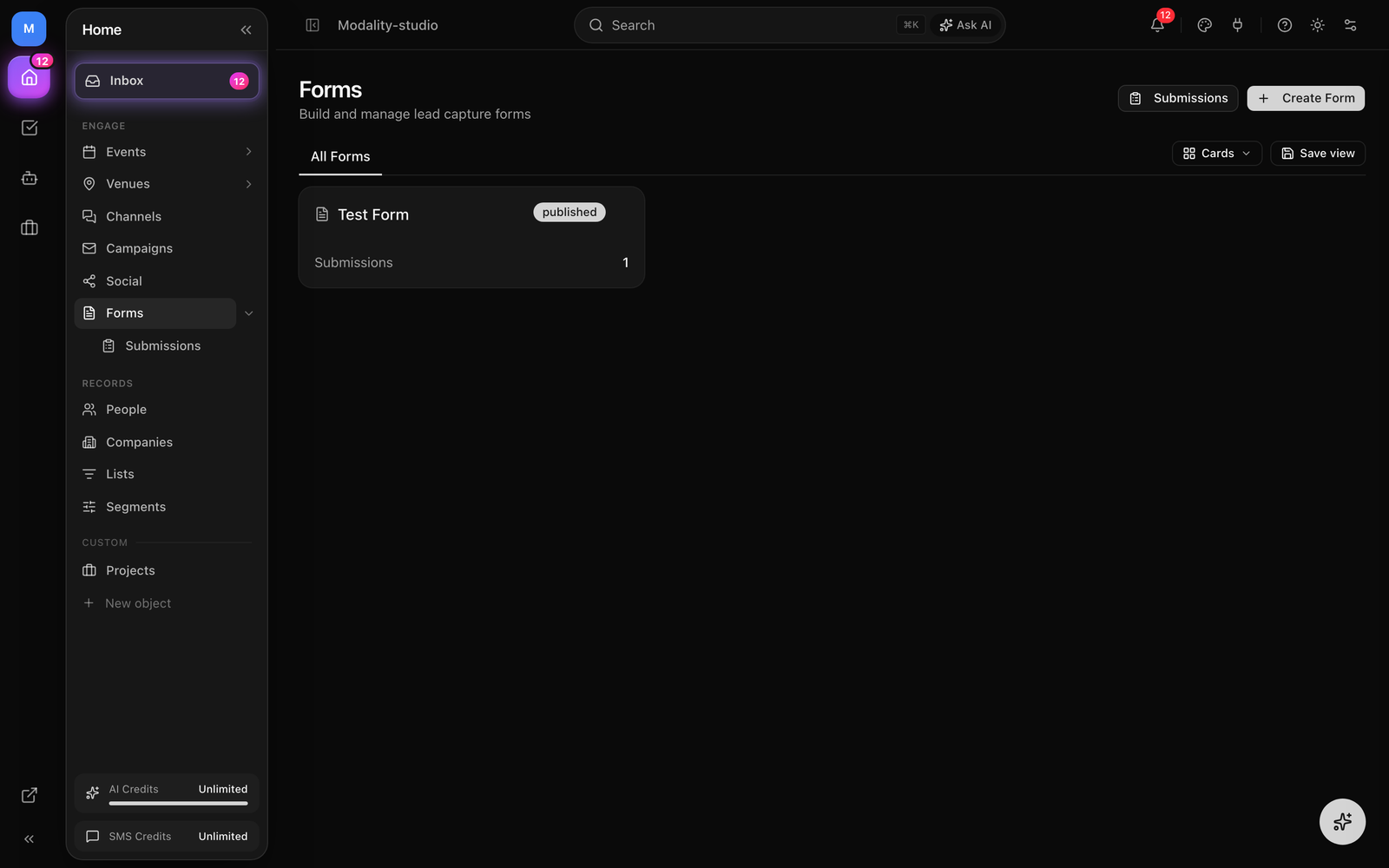
Live Form Builder
The form builder renders the actual form as the editing surface, click labels, helper text, or options directly on the live form to edit inline. Drag fields to reorder. The right panel opens for advanced settings (validation, CRM mapping, conditional logic) when you click a field.
Conditional Field Visibility
Show or hide fields based on answers to other fields. Build rules with AND/OR logic and 5 operators: equals, not equals, contains, not empty, is empty. Select/radio fields show an option picker for the value. Conditions evaluate in real-time on both the builder preview and public forms.
Keyboard Shortcuts
Ctrl/Cmd+Z to undo, Ctrl/Cmd+Shift+Z to redo, Backspace to delete selected field, Escape to deselect. Full undo/redo history tracks all field changes, reorders, and settings updates.
Contact Mapping & CRM Fields
Drag contact fields (First Name, Last Name, Email, Phone) from the palette to auto-map to CRM columns. Submissions create or update people in your CRM. Custom fields supported.
Theming & Multi-Page
Customize appearance with colors, fonts, button styles. Create multi-page forms with page tabs. Support for "one-at-a-time" experience mode. Forms render in both light and dark modes.
Payments & Embeds
Add product fields for Stripe payments. Published forms get a public page at /form/your-form-slug and can be embedded on external sites using the JavaScript embed snippet.
Email Campaigns
Create and send email campaigns natively through Modality or via connected ESPs (Brevo, Mailchimp, Klaviyo).
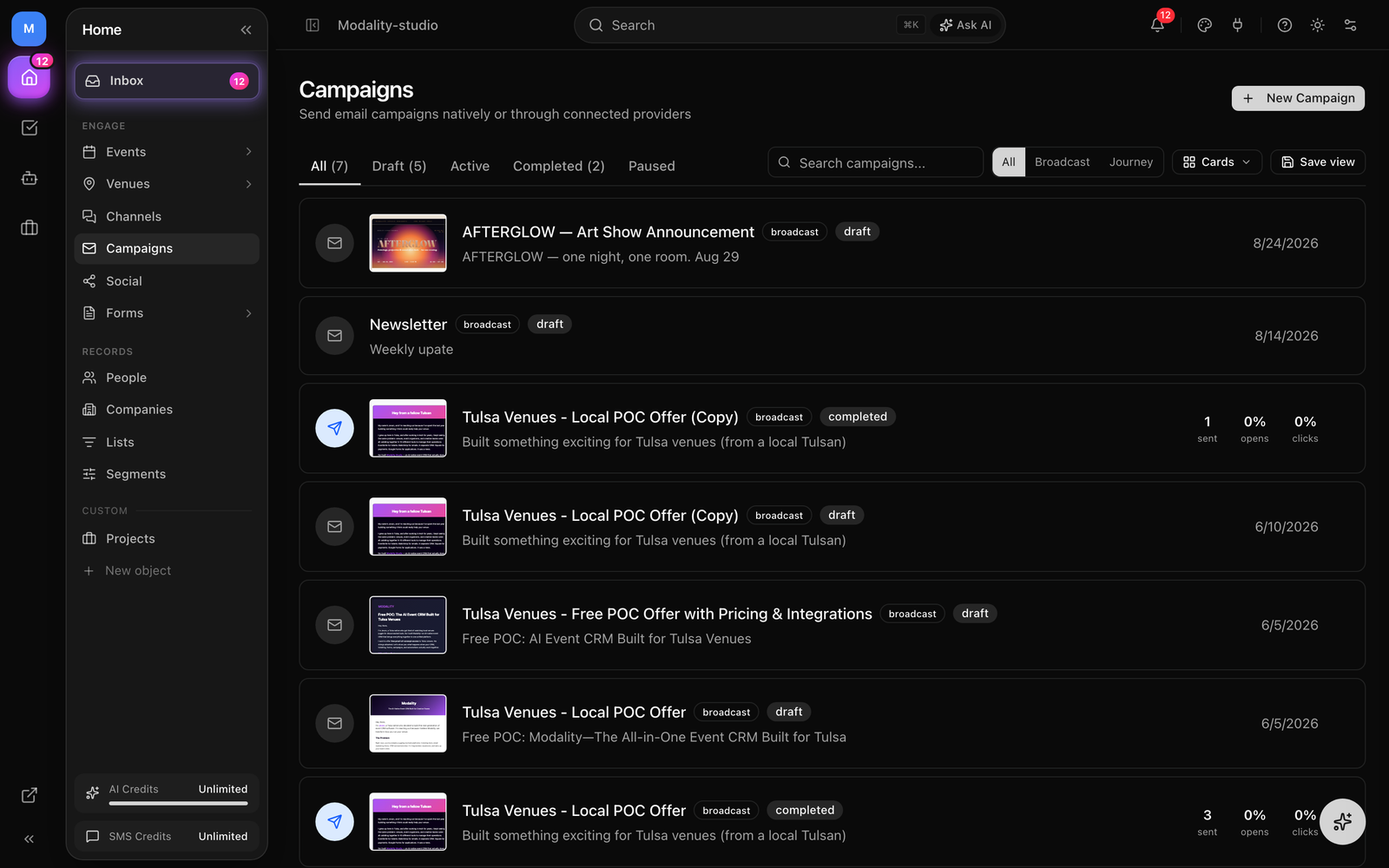
Broadcasts vs Journeys
Broadcasts are one-time sends, build, send, done. Journeys are automated campaigns with scheduling, recurrence (daily, weekly, monthly, custom cron), and trigger-based entry via automations. Convert between types from the More menu.
Campaign Setup Wizard
After creating a campaign, a setup wizard guides you through four options: start from scratch with the visual editor, generate with AI Campaign Studio, choose from the template library, or paste existing HTML. Templates and HTML paste include live previews.
Campaign Checklist
The campaign detail page uses a step-by-step checklist layout with expandable sections for Sender, Recipients, Subject, and Design. A progress bar at the top shows completion status. A live email preview panel appears on the right.
Visual Email Editor
Drag-and-drop email builder with block types: heading, paragraph, image, button, divider, spacer, social links, logo, and columns. Tiptap-powered rich text editing with inline toolbar (bold, italic, underline, links, alignment). Brand kit colors appear as swatches in all color pickers.
Merge Tags
Insert personalization tokens (first name, last name, full name, email, phone, unsubscribe link) as visual pills in the editor. The preview tab replaces merge tags with sample data.
AI Campaign Studio
Generate complete email campaigns with AI. Choose campaign type (event announcement, newsletter, promotional, etc.), describe your goal, select tone, pick sections, and link events from your workspace. Brand kit assets (logos, colors) are automatically applied. Generates 3 variants for A/B testing.
Template Library
9 built-in starter templates across categories: welcome, newsletter, event, sales, transactional, and minimal. Save any email design as a reusable template. Templates include live preview before applying.
Native Sending & Deliverability
Send campaigns directly through Modality via Resend, no external ESP required. Features include batch sending with rate limiting, open/click tracking via webhooks, one-click unsubscribe (CAN-SPAM/GDPR), bounce/complaint handling, and custom sending domains with DKIM/SPF verification.
Pre-Send Review
Before sending, a preflight dialog checks: subject line, content, audience count, send limits, sender reputation (bounce/spam rates), content screening (spam trigger words, missing unsubscribe link, all-caps subject, image-to-text ratio), and deliverability health.
Campaign Analytics
After sending, campaigns show a rich analytics dashboard: delivered/opens/clicks/unsubscribes with rates, audience breakdown, and timeline. The metrics tab combines performance data with activity history.
Automations
Build workflows that trigger automatically based on events in your workspace.
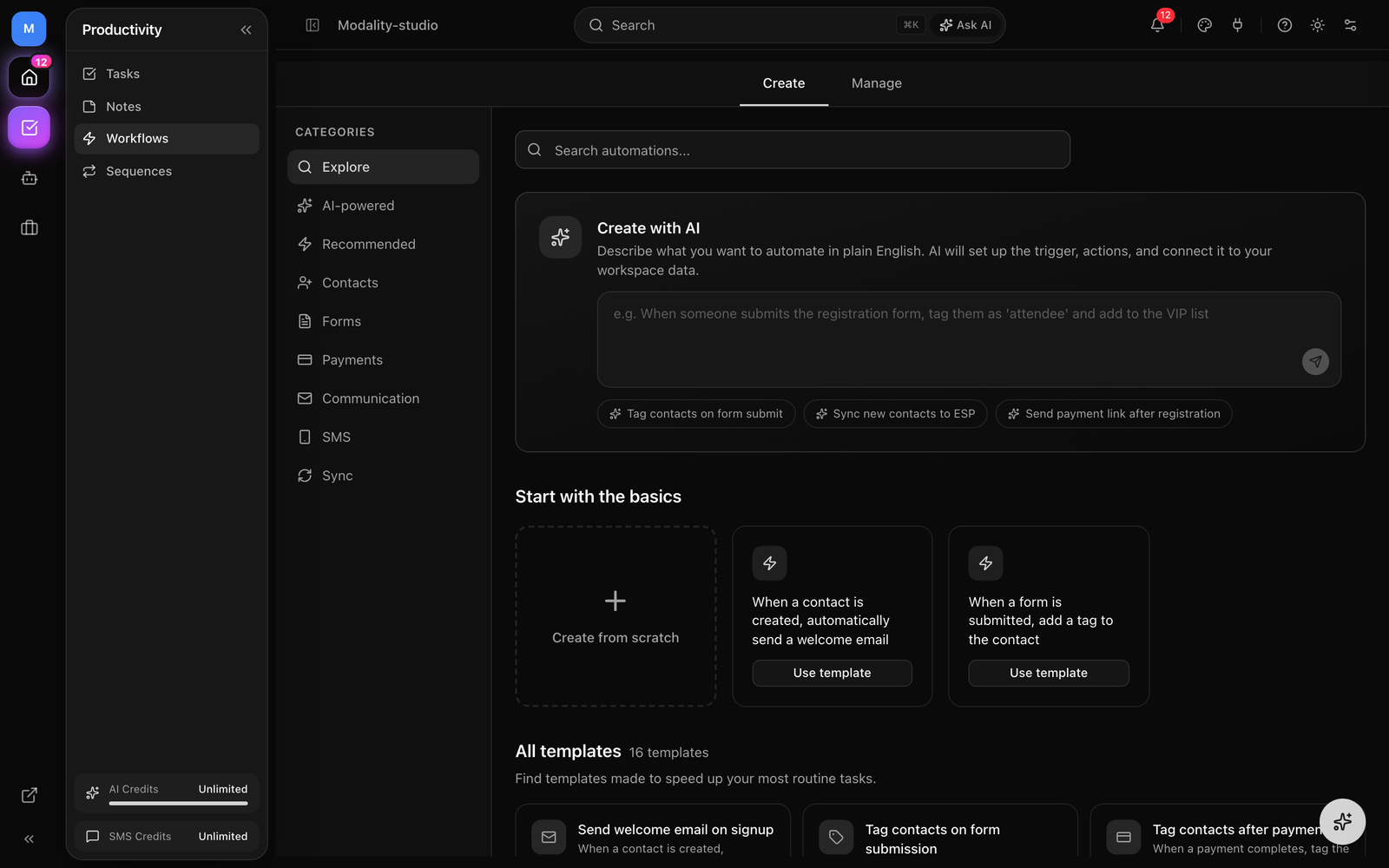
Triggers
Automations start with a trigger: form submission, ticket purchase, tag added/removed, contact created, added to list, date approaching/passed, boolean field changed, number threshold crossed, or value set/cleared. Each automation has exactly one trigger.
Actions
Actions execute in sequence after the trigger fires. Available actions: add/remove tag, send email, add/remove from list, create record, update contact field, sync to ESP, and trigger Mailchimp automations.
Journey Triggers
Journey campaigns link directly to automations. Configure a trigger on the Journey's Trigger tab using the sentence builder, or schedule with recurrence (daily, weekly, monthly, custom cron). The automation action is pre-set to "Send this campaign."
AI Assistant
Modality's AI assistant understands your workspace and can take real actions through natural language.
What the AI Can Do
- Create events with ticket types and publish them
- Build forms with custom fields
- Create and manage custom object types and records
- Search and filter contacts
- Set up automations and campaigns
- Answer questions about your workspace data
Inline Chat vs. Global Chat
The AI is accessible in two ways: the inline chat on the Home page (and Automations page) for quick interactions, and the global chat sidebar accessible from any page. Both share the same thread history.
Credits & Usage
Each AI chat message uses 1 credit, whatever it does. Larger generations cost more, workspace setup and seat maps are 3 credits, brand extraction is 2, and Campaign Studio is 2 (or 6 for three A/B variants). Monitor usage in the sidebar or Settings → Billing.
Custom Objects
Track any type of data beyond the built-in modules. Create custom objects for deals, products, projects, venues, sponsors, whatever your workflow needs.
Object Types
Create object types from the sidebar or via AI. Each object type gets a name, slug, icon, and set of custom attributes. Built-in attributes: text, number, date, select, multiselect, currency, URL, email.
Views
Switch between grid (spreadsheet) and kanban (board) views. Sort, filter, and group by any attribute. Bulk operations let you update, tag, or delete multiple records at once.
Integrations
Connect Modality to your existing tools for payments, email delivery, and data sync.
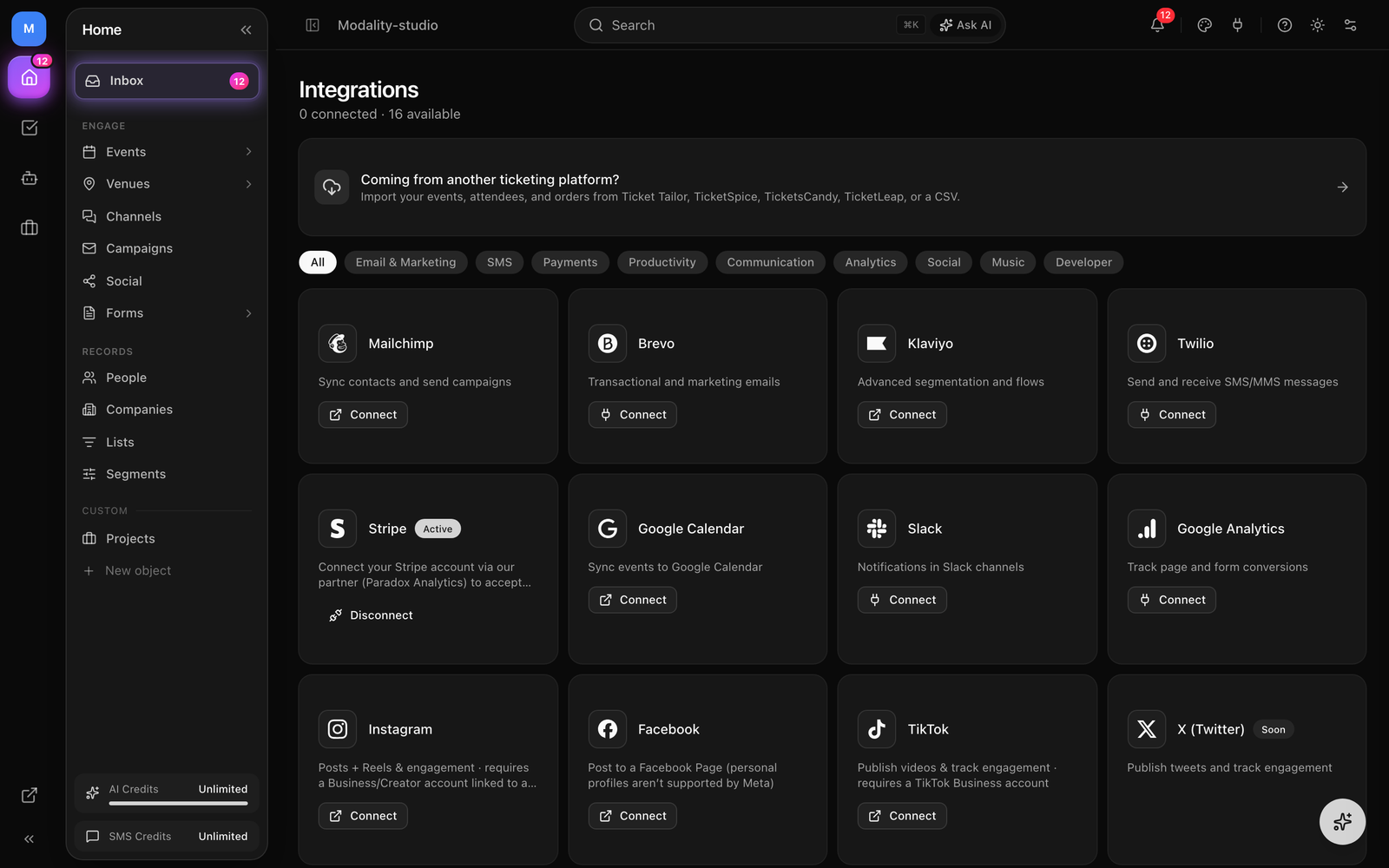
Stripe
Connect Stripe to enable ticket sales and form payments. Modality handles checkout session creation, webhook processing, and order fulfillment automatically.
Email Service Providers
Connect Brevo, Mailchimp, or Klaviyo via API key or OAuth. Modality syncs contacts and lists bidirectionally and routes campaign sends through your ESP.
Connector Framework
All integrations implement a shared Connector interface with standardized methods for contact sync, list management, and campaign sending. This ensures consistent behavior across providers.
Brand Kit
Centralize your brand identity for consistent use across campaigns, event pages, and AI-generated content.
Colors, Fonts & Voice
Set primary, secondary, accent, and nav bar colors, they appear as swatches in the email editor's color pickers. Choose from 70+ Google Fonts with a searchable dropdown. Define your brand voice preset and guidelines for AI content generation.
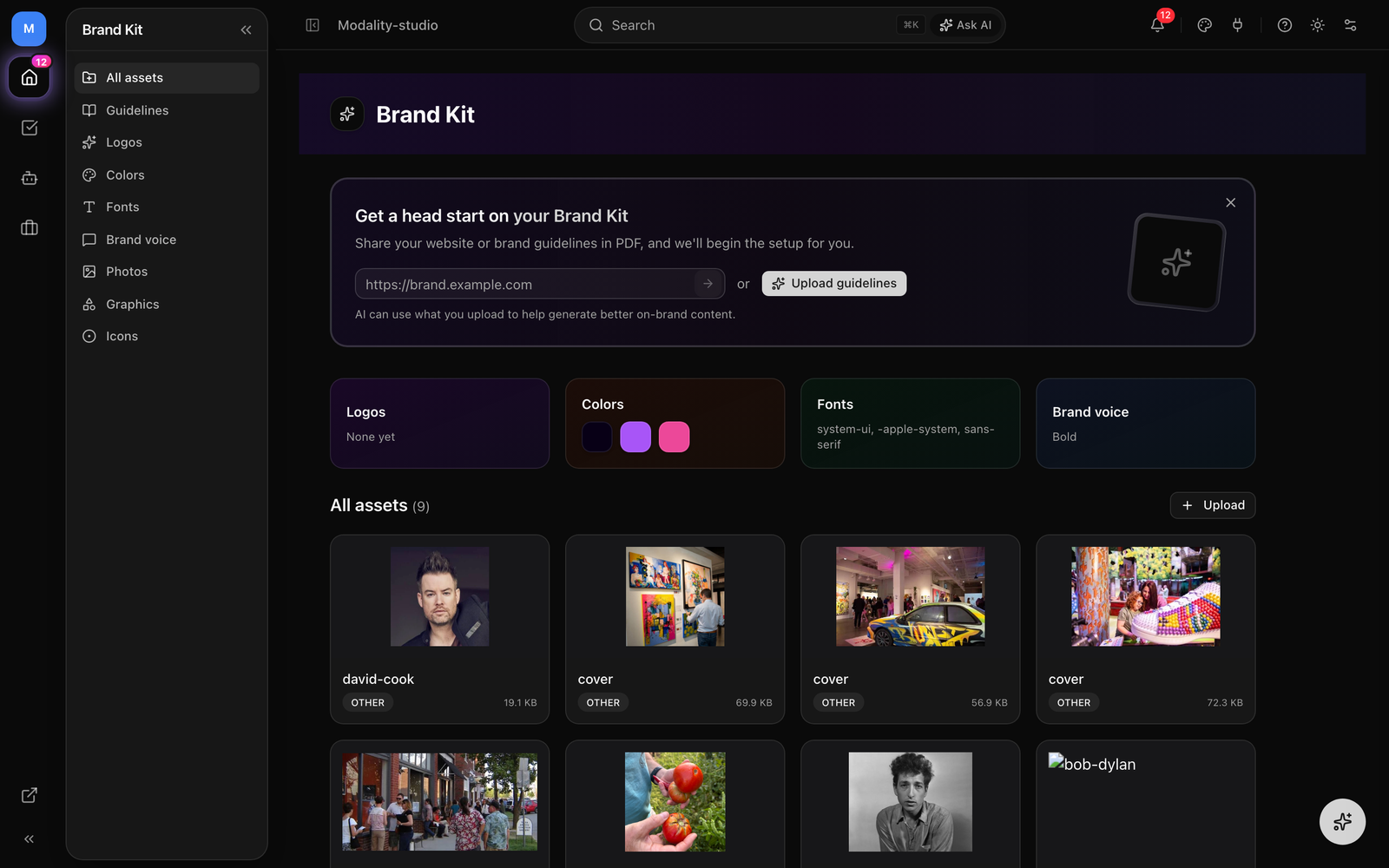
Assets & AI Extraction
Upload logos, photos, graphics, and icons organized by category. Share your website URL and AI will extract brand colors, fonts, and assets automatically.
Invoices & Payment Plans
Create professional invoices, track payments, and manage installment plans with Stripe-powered checkout.
Creating & Sending Invoices
Build invoices with a dedicated full-page form. Add line items, select contacts and companies, set payment terms (Due on Receipt, Net 15/30/60), and send with one click. Invoice emails include a "Pay Now" button linking to a public payment page.
Split Payments
Support partial payments and installment plans. Customers can pay any amount toward the balance from the public payment page. Track payment history and remaining balance on every invoice.
Invoice Automations
Automate invoice workflows with 5 triggers (created, sent, paid, overdue, partial payment) and 3 actions (create invoice, send invoice, send invoice email). Build deposit-to-final-payment flows, overdue reminders, and thank-you sequences.
Lists
Organize people into targeted groups for email campaigns and automations.
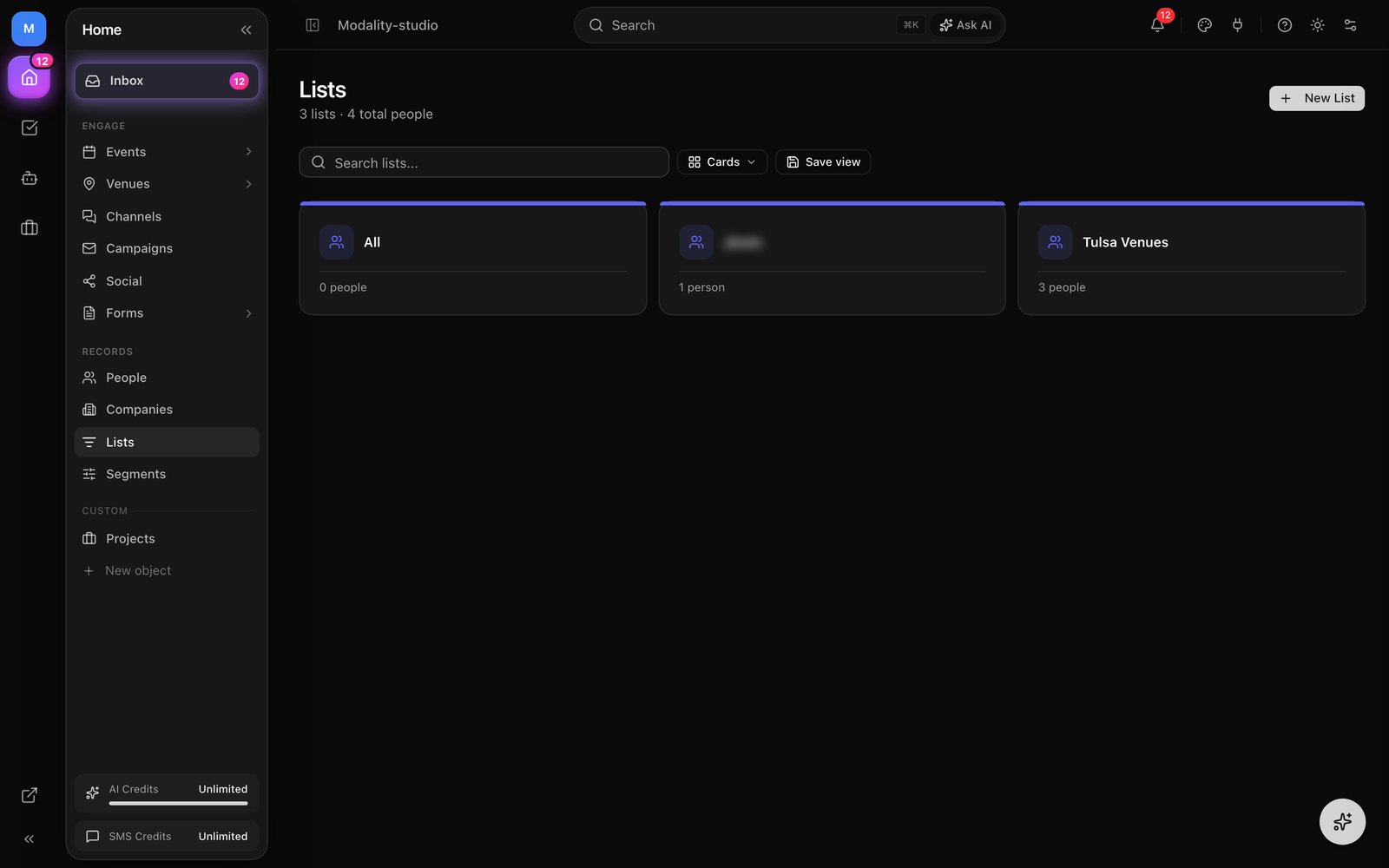
Creating & Managing Lists
Create lists from the Lists page, the People table toolbar, or inline when selecting campaign recipients. Add people in bulk by selecting rows and choosing a list, or from the list detail page with a searchable people picker. Export list members to CSV.
Using Lists in Campaigns
Select a list as your campaign audience in the Recipients section. Create new lists inline from the dropdown. Lists can also be populated automatically via automations (e.g., "When form submitted → Add to Newsletter list").
Compliance & Deliverability
Built-in tools to maintain sender reputation and comply with CAN-SPAM/GDPR requirements.
Double Opt-In
Enable in Settings → General → Email & Compliance. When active, new people from forms start as "Pending" and receive a branded confirmation email. They become "Active" only after clicking the confirmation link. Pending people are excluded from campaign sends.
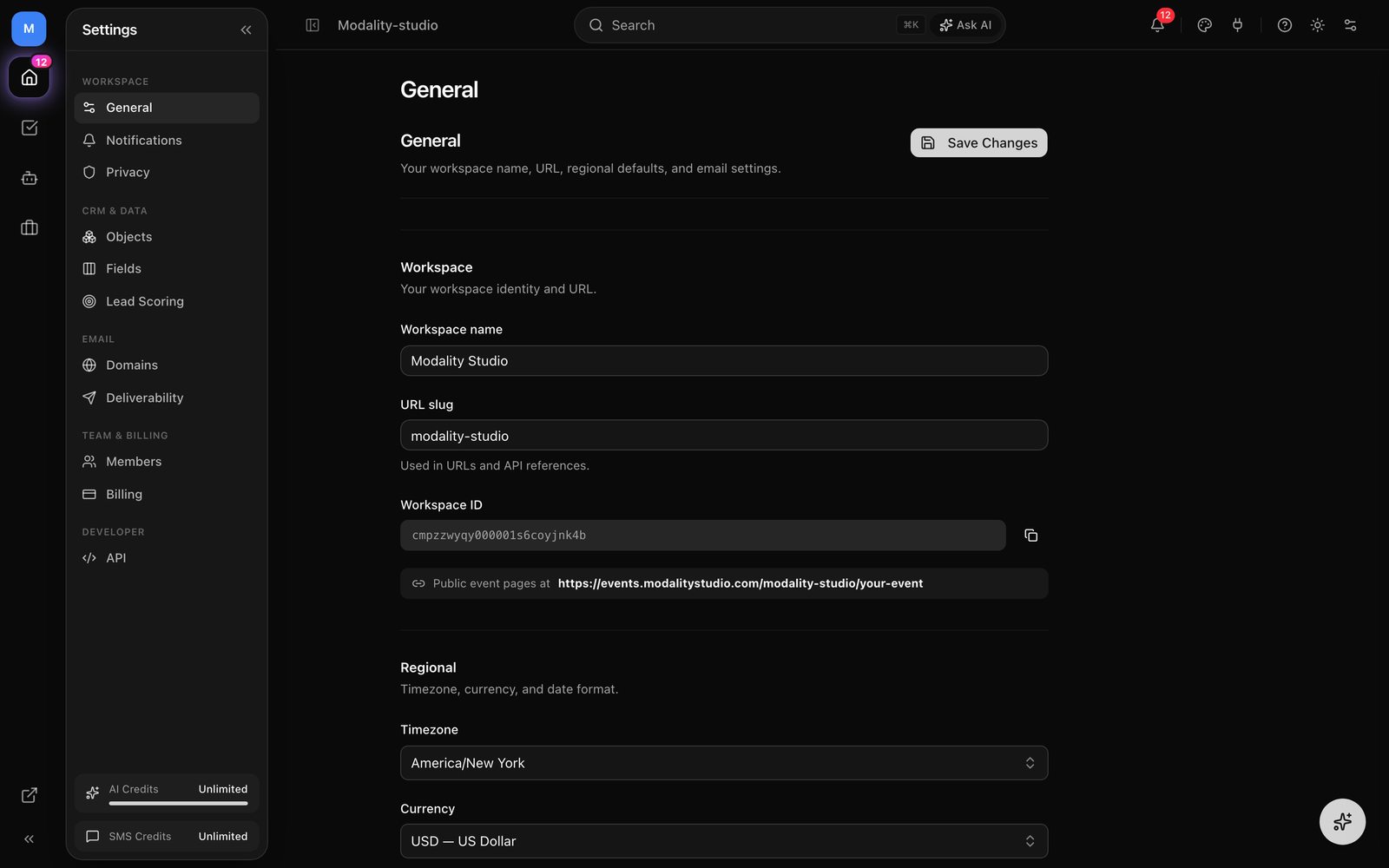
Send Limits & Content Screening
Plan-based monthly send limits (Free: 500, Pro: 10K, Business: 50K). The pre-send review automatically checks for spam trigger words, missing unsubscribe links, ALL CAPS subjects, excessive exclamation marks, low text-to-image ratio, and unknown merge tags.
Deliverability Monitoring
Sender reputation is tracked over a 30-day rolling window. The preflight dialog shows health status (green/amber/red) based on bounce rate (>3% warning, >5% critical) and spam complaint rate (>0.05% warning, >0.1% critical). Contacts are automatically marked as bounced or unsubscribed via Resend webhooks.
Custom Sending Domains
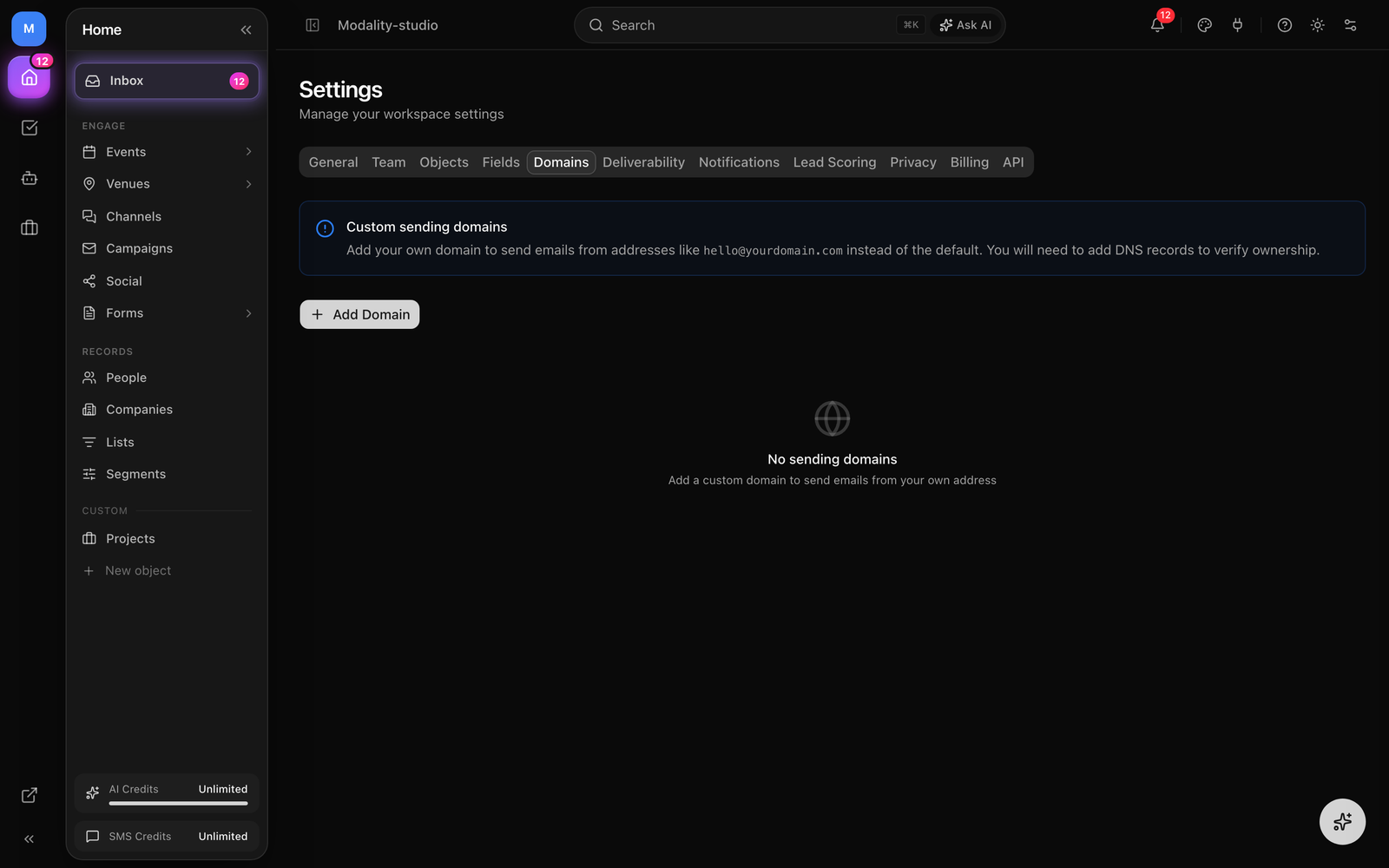
Set up custom sending domains in Settings → Domains. Add your domain, configure DKIM/SPF/DMARC DNS records, and verify. Emails then send from your domain instead of the shared modalitystudio.com domain.
Analytics & Reports
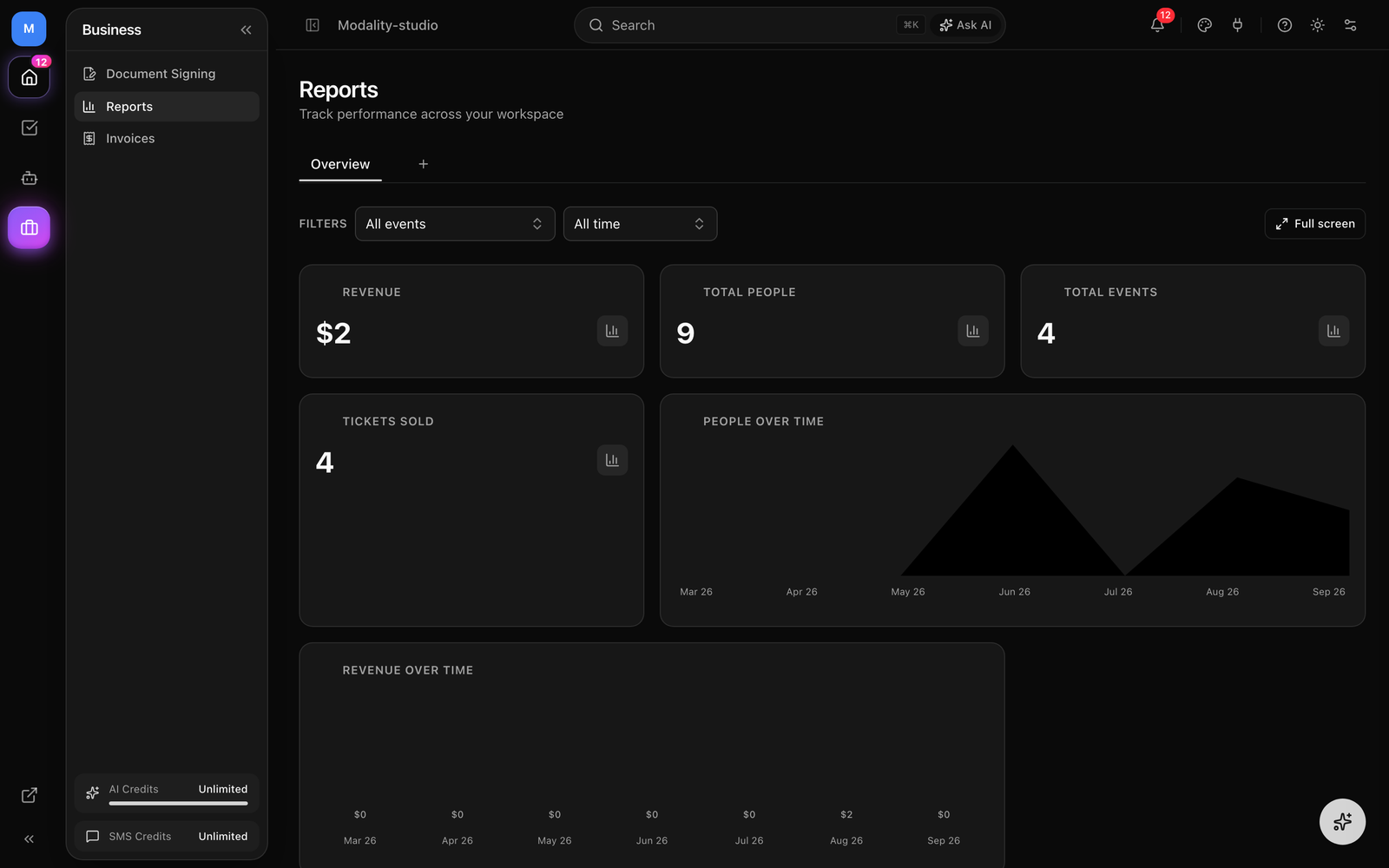
Track performance across your workspace with modular, drag-and-drop dashboards.
Dashboard Widgets
The reports dashboard supports multiple widget types: stat cards, bar charts, line charts, recent activity, top events, and contact growth. Resize widgets by cycling through small, medium, and large sizes.
Saved Views
Save custom dashboard layouts as named views. Share views with team members via URL. Each view preserves widget arrangement, sizing, and configuration.
Event Risk & Market Intelligence
Modality continuously scans the market around your events, competing shows, market pressure, and audience overlap, and produces a composite threat score with AI-written risk reports and recommendations. Configure a scan window and the markets you want watched, or run an ad-hoc scout on demand, so you can react (reprice, re-market, shift a date) before a conflict costs you ticket sales.