People & CRM
The CRM is the core of Modality. Every interaction, ticket purchases, RSVPs, form submissions, email clicks, box-office sales, flows back to a person record. This guide covers the People object end to end: the spreadsheet table and its alternate views, pipeline statuses, lead scoring, the record detail panel, tasks & notes, custom and calculated fields, Companies and relationships, double opt-in, and the AI-assisted CSV importer.
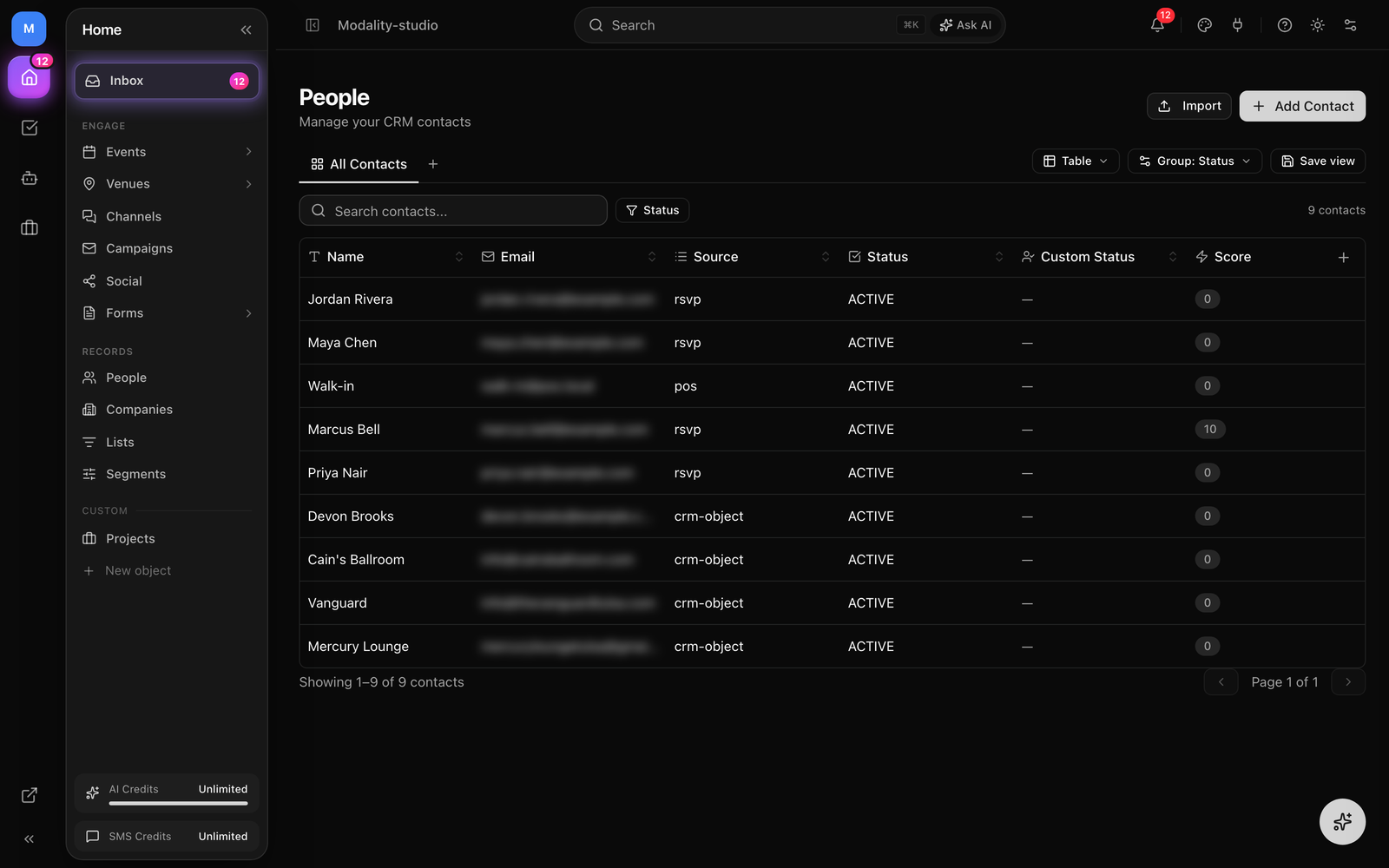
People & the Objects Model
Modality is built on a flexible objects model. People and Companies ship as built-in standard object types that can't be deleted, and you can add your own custom object types (Deals, Products, Sponsors, Venues…) alongside them. A person record represents a contact, an attendee, lead, subscriber, customer, or collaborator.
Every person has built-in fields, first name, last name, email, phone, company, job title, website, Instagram, photo, lead source, subscription status, pipeline status, and lead score, and can be extended with unlimited custom attributes. People connect to every other module: they appear as ticket buyers and RSVP guests on events, as form submitters, as campaign recipients, and as automation targets. The activity timeline on each record aggregates all of it into one chronological view.
The Spreadsheet-Style Table
The default view shows every record in a powerful spreadsheet-style grid. Here is how to work with it.
Inline Editing
Click a cell to select it and start typing to edit its value directly in the table. Each field type renders the right control, text inputs, number inputs, date pickers, single- and multi-select dropdowns, checkboxes, and star ratings. Press Enter to commit, Escape to cancel.
Keyboard Navigation
Navigate the grid like a spreadsheet:
- Arrow keys, move between cells
- Tab / Shift+Tab, move to the next / previous cell in the row
- Enter, start editing the selected cell (Enter again commits)
- Escape, cancel editing or deselect
Sorting & Filtering
Click a column header to sort. Use the filter toolbar above the table to add conditions on any field, operators include equals, not equals, contains, does not contain, starts with, greater/less than, is empty, and is not empty. Stack multiple filters to narrow the set. Filters (and sort) are saved as part of the view you are in, so each view can show a different slice.
Columns
Drag column headers to reorder them and drag the right edge to resize. Show or hide columns and reorder fields from the column controls; column layout is remembered per view.
Bulk Selection
Tick the checkbox on any row to select it, or the header checkbox to select every visible row. With rows selected, a bulk action bar lets you apply tags, add to a list, export, or delete the selection.
Right-Click Context Menu
Right-click any row for quick actions:
- Expand record, opens the slide-out detail panel
- Duplicate record, creates a copy with a new ID
- Copy Link, copies the direct URL to the record
- Open record, opens the full record page
- Delete record, removes it (with confirmation)
The same grid, context menu, and views work on every object type, People, Companies, and any custom object, so the interface is consistent throughout the platform.
GIF: editing a cell inline in the People grid, then right-clicking a row to show the context menu (Expand / Duplicate / Copy Link / Open / Delete).
Demo GIF / screenshot to be added
Views: Table, Board & Beyond
A single object can be looked at through many saved views, shown as tabs above the data. Each view keeps its own filters, sort, and column layout, so "All People," "VIPs," and "This month's leads" can live side by side. Add a view from the + tab:
- Table, the spreadsheet grid (the default).
- Kanban (Board), cards grouped into columns by a single-select field (for example a pipeline status). Drag a card between columns to change that field's value. Available once the object has a select-type field to group by; pick the grouping field from the board's controls.
- Calendar, records placed on a calendar by a date field.
- Timeline, a chronological / Gantt-style layout.
- Chart, an aggregate visualization of the records.
- Gallery, a card grid, useful when records have photos.
- Form, a public form that creates records of this object type.
- Dashboard, a composed summary view.
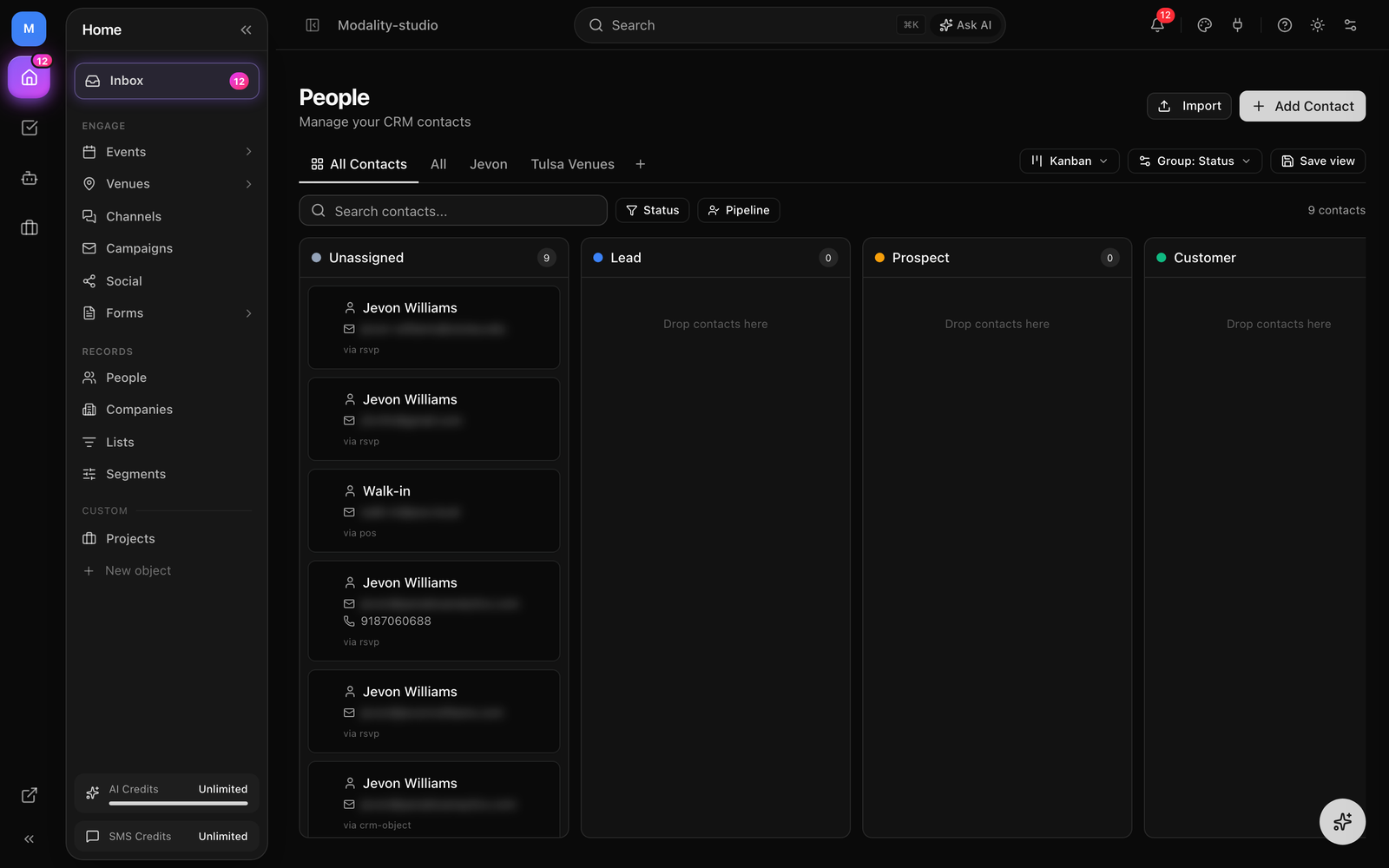
Pipeline Statuses (Kanban Stages)
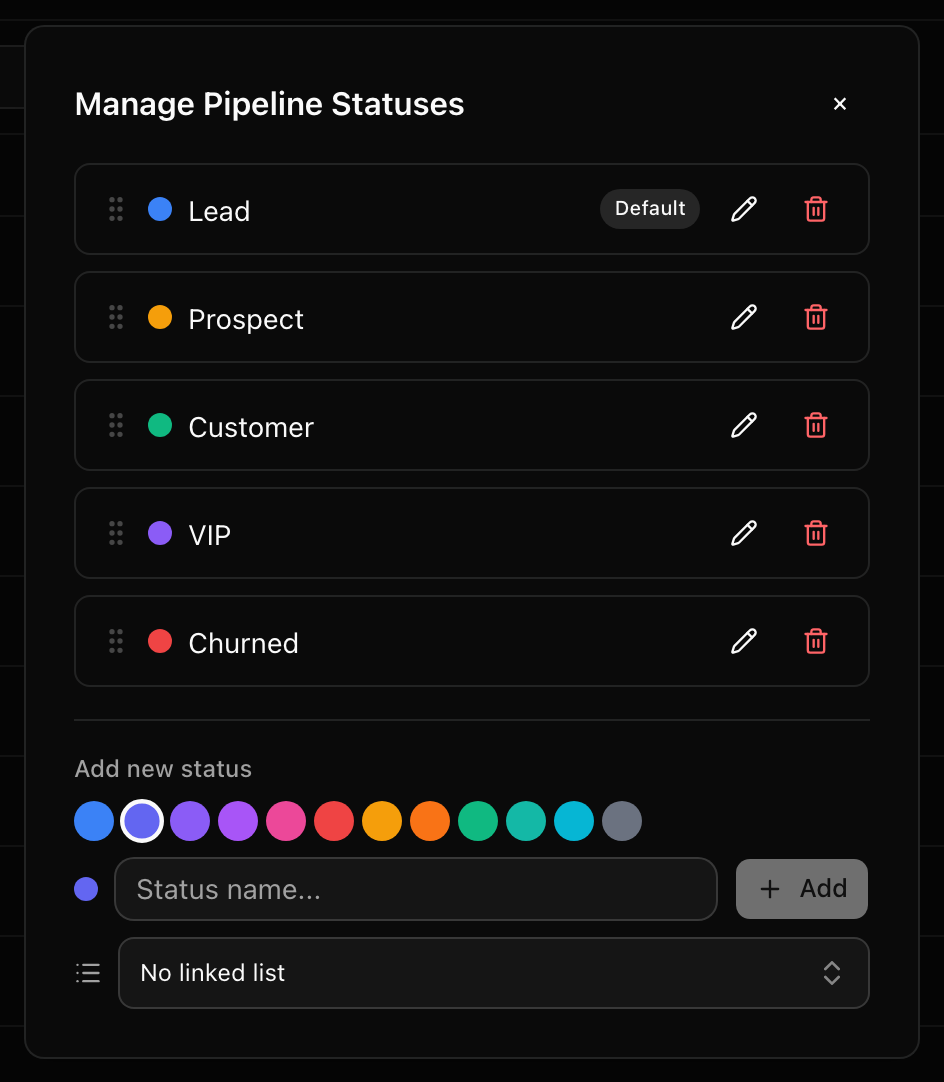
Beyond the email subscription status (below), each person carries a pipeline status, a custom stage you define for your workflow. These become the columns of a Kanban board. Modality seeds a default pipeline you can rename, recolor, reorder, or replace:
- Lead (the default for new records)
- Prospect
- Customer
- VIP
- Churned
Each status has a name, a color, and a position, and one is marked the default. Set a status by editing the field on a record or by dragging its card between board columns.
Linked Lists
A status can be linked to a list. When a person moves into that status they're added to the linked list automatically, and removed from the old status's list, so a stage like "Customer" can keep a matching audience in sync for campaigns without manual upkeep.
Subscription Status & Email Eligibility
Separately from the pipeline, each person has a subscription status that governs whether they can receive marketing email:
- Active, eligible to receive campaigns.
- Pending, awaiting double opt-in confirmation; excluded from sends until confirmed.
- Inactive, not currently mailable.
- Unsubscribed, opted out of marketing email.
- Bounced, the address returned a hard bounce.
Lead Scoring
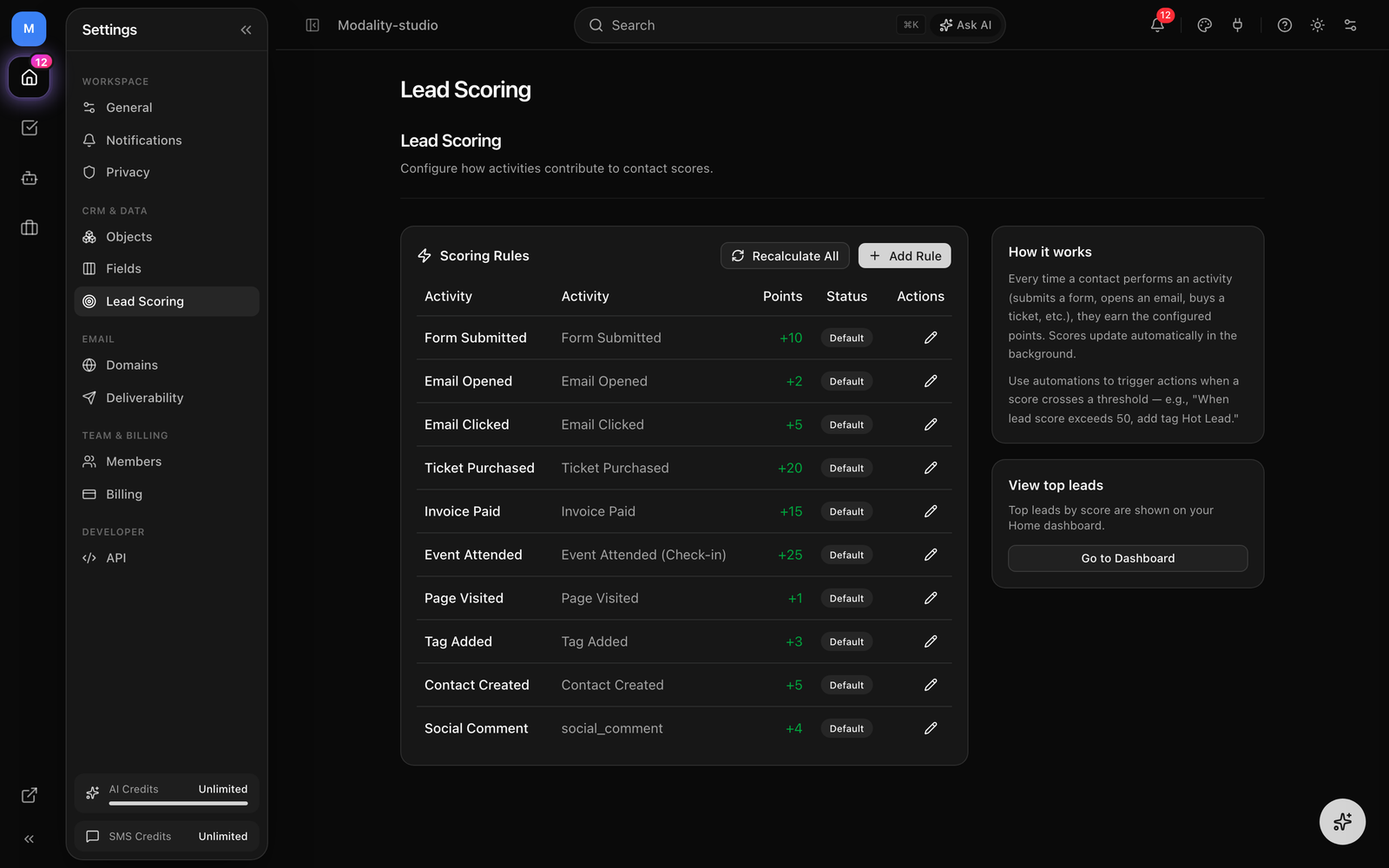
Every person carries a numeric lead score that rises as they engage. Scoring is rule-based: each rule maps an activity to a point value, and points accrue on the record as those activities happen. Manage rules in Settings → Lead Scoring. Until you add your own rules, Modality applies a set of sensible defaults:
- Event attended (check-in), +25
- Ticket purchased, +20
- Invoice paid, +15
- Form submitted, +10
- Email clicked, +5, contact created, +5
- Social comment, +4, tag added, +3
- Email opened, +2, page visited, +1
Add a rule by choosing an activity (form submitted, email opened/clicked/sent, ticket purchased, event attended, invoice paid, RSVP submitted, comment posted, review submitted, and more) and a point value, values can be negative to decay a score. Scores update automatically in the background as activities land, and Recalculate All replays a workspace's history against the current rules. Your top leads by score surface on the Home dashboard.
Lead Source
Every record captures where it came from. At the moment a person is first created, Modality stamps a lead source from the ingest path and surfaces it as a human-readable column, Event RSVP, Ticket purchase, Waitlist, Point of sale, Form, Website, CSV import, API, Email reply, AI chat, or a specific social platform like Instagram. Source is first-touch: it records the true origin and isn't overwritten by later activity, so you can attribute where your audience actually comes from.
Record Detail: Slide-Out Panel & Full Page
Open a record two ways. Expand a row (context menu, or the expand affordance on the row) to slide a detail panel in from the right without leaving the table, or Open record for the full record page.
The Slide-Out Panel
The panel lays every field out in an editable form, grouped into readable sections, Name, Contact, Professional, Social & Web, Location, Details, and Dates, with long-text fields given their own full-width blocks. Edit values in place, then Save (the button enables only when there are unsaved changes). Social and URL fields show an open-in-new-tab link. Close the panel to return to the table.
The Full Record Page & Its Tabs
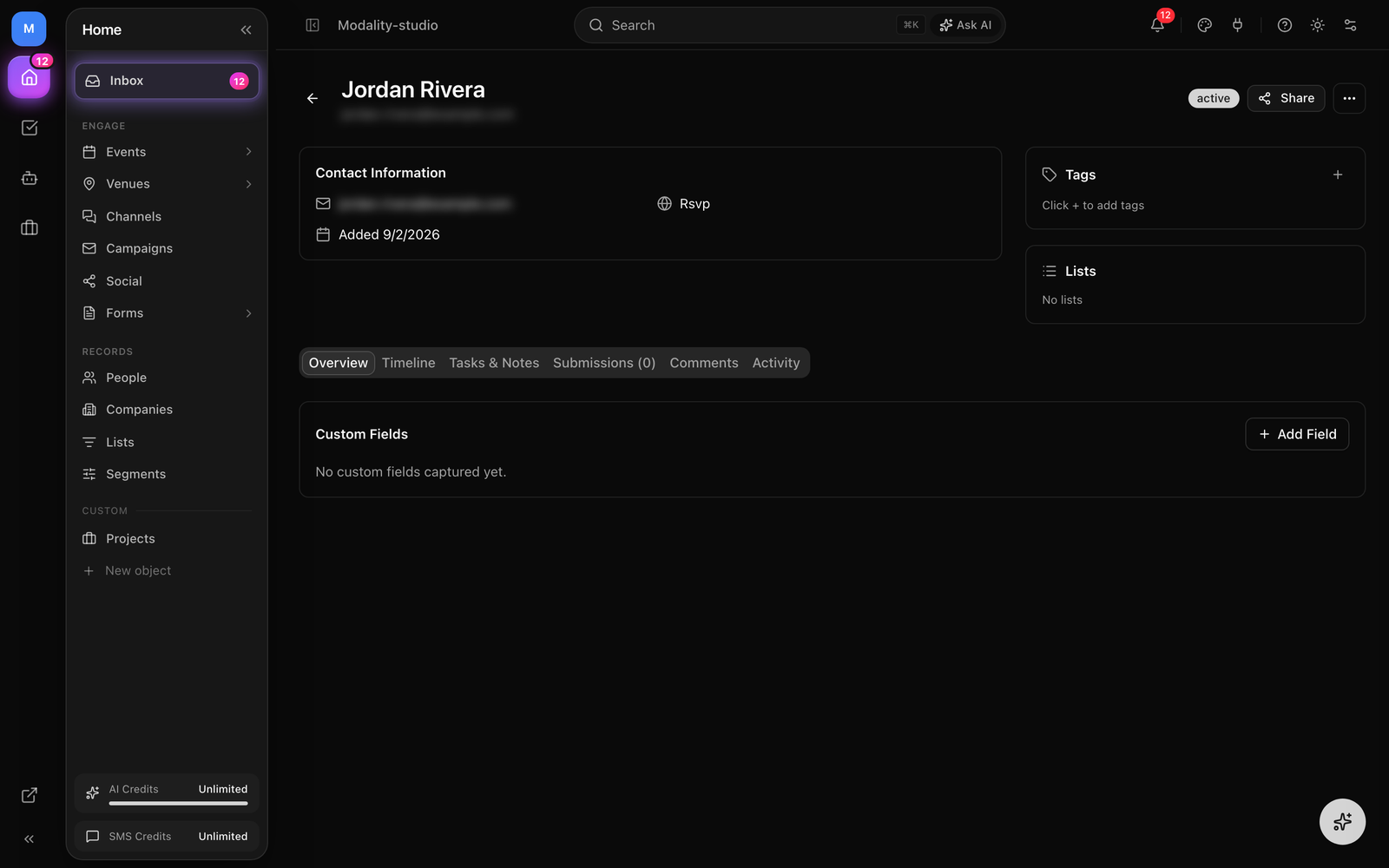
The full page organizes everything about a person into tabs:
- Overview, all fields, grouped and editable.
- Activity, the record's Timeline (every interaction plus manual edits) alongside Automation runs that fired for this person.
- Submissions, forms this person has submitted, with source and the submitted data.
- Tasks & Notes, follow-ups and internal notes attached to this record (see below).
- Automations, automation activity related to the record.
An open-tasks indicator surfaces any outstanding follow-ups for the record at a glance.
Tasks & Notes
Keep the human side of the CRM, your to-dos and your context, on the record itself, in the Tasks & Notes tab.
Tasks
A task has a title and optional description, a status (To do, In progress, Done, Cancelled), a priority (Urgent, High, Medium, Low, or none), an optional due date, and an assignee (a workspace member). Tasks attached to a person show up in that record's open-tasks indicator, and can sync to Google Calendar when that integration is connected.
Notes
Notes are free-form internal text attached to a record, with an author and an optional assignee. Start from a note template to standardize recurring write-ups (call notes, intake, meeting recap). Both tasks and notes can be linked to other entities (an event, a form, another record) so context follows the work.
Tags and Lists
Tags
Tags are flexible colored labels you attach to records, VIP, speaker, sponsor, newsletter, event-specific tags, and so on. To apply them:
- Select one or more rows with their checkboxes.
- Open the Tags control in the toolbar / bulk action bar.
- Search an existing tag, or type a new name to create it.
- Toggle a tag on or off for the selection.
- Tags appear as colored badges in the Tags column.
Lists
Lists are curated groups of people for targeting. Unlike tags (metadata you filter on), a list is a membership you manage directly and point campaigns and automations at:
- Select rows in the table.
- Open the Lists control and choose an existing list or create one inline.
- The selected people are added immediately.
- Use the list as a campaign audience or automation target.
Custom Fields & Field Types
Extend any object with custom attributes to track exactly the data your workflow needs. Manage an object's fields in Settings → Fields (or add one on the fly from the table's column controls, and during import). A new field appears immediately as a column in the table and in the record detail.
Supported Field Types
- Text and Long Text, single-line or multi-line.
- Number, Currency, Percent, and Rating (stars).
- Date and Date & Time.
- Checkbox (boolean true/false).
- Select and Multi Select, from predefined, colored options.
- Email, Phone, and URL, validated and made actionable.
- Location, an address with autocomplete, and Name (personal name).
- Relationship and Record Reference, links to other records (see Companies & Relationships).
- Team Member, assigns a workspace user (and notifies them).
- File, Image, and JSON for attachments and structured data.
- Calculated, a value derived from other fields (see below), and AI Generated, a value produced from a prompt.
How to Add a Custom Field
- Go to Settings → Fields and pick the object type.
- Click Add Field and choose the field type.
- Enter a name (display label) and an optional description.
- For Select / Multi Select, define the options; for Relationship, choose the target object type; for Calculated, define the formula.
- Optionally mark the field required, unique, or the title field, then save.
{{key}} tag to any person field or a linked Company field so campaigns personalize from related records too.Calculated Fields
A Calculated field derives its value from other fields on the record and recomputes automatically when they change. Choose from seven formula types:
- Date offset, a source date plus/minus a number of days (e.g. "renewal = signup + 365").
- Field copy, mirror another field's value.
- Conditional, if a field matches a test, use one value, otherwise another.
- Math, an arithmetic expression over numeric fields (e.g.
{price} * {quantity}). - Date/time difference, the gap between two dates in minutes, hours, days, weeks, months, or years (use
NOWfor "since"). - String concat, join several fields with a separator.
- Switch, map a field's value through cases to a result, with a default.
Companies & Relationships
Companies is a built-in object for the organizations behind your people, venues, sponsors, agencies, brands. A person can belong to a company, and Relationship / Record Reference fields let you link records across any object types (person → company, deal → person, and so on) with one-to-one, one-to-many, or many-to-many cardinality. Linked records render as chips on the detail panel and can be opened from there.
Because relationships are first-class, campaign merge tags can pull from a person's linked Company, personalize with a company name or a company custom field, not just fields on the person. The importer can also create Companies and wire up the person-to-company link for you (next section).
Double Opt-In
Turn on Double opt-in in Settings → General to require email confirmation before a new contact can be mailed. When it's enabled:
- A person added through a form or the API is created in Pending status with a confirmation token.
- They automatically receive a branded confirmation email (your logo, verified sending domain, suppression checks, the same infrastructure as every other transactional send).
- Clicking the confirmation link flips the record to Active and clears the token.
- While Pending, the contact is excluded from campaign sends.
Importing Records (CSV)
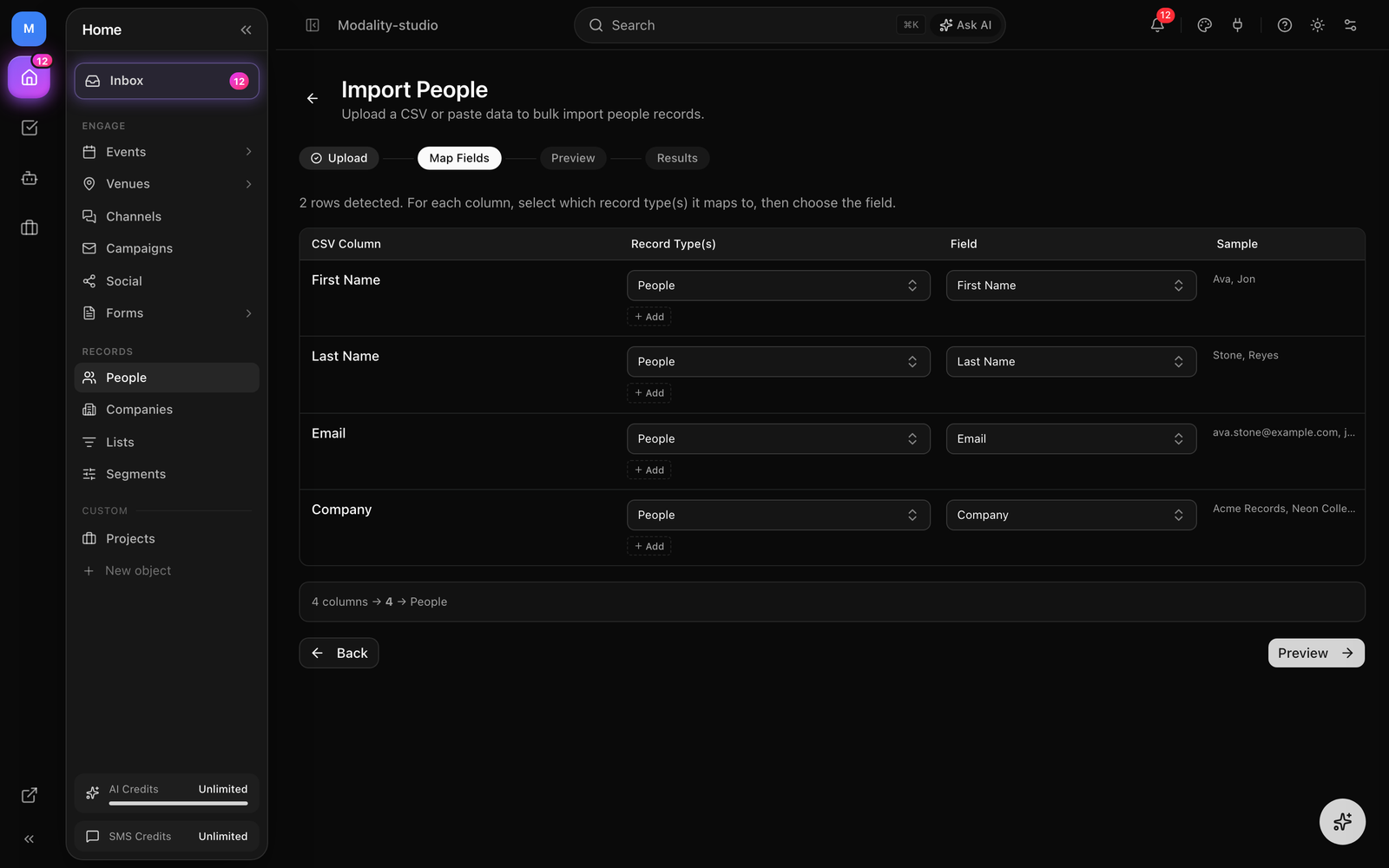
The importer is a guided wizard, Upload → Map Fields → Preview → Results, that can populate People, Companies, and even custom objects from one sheet, inferring field types and de-duplicating as it goes. Open it from an object's Import action.
Step by step
- 1
Upload or paste
Paste CSV text (headers in the first row) or upload a
.csv,.tsv, or.txtfile. A Download CSV template link gives you a pre-formatted header row for the object's fields. - 2
Map fields, with automatic type inference
Modality auto-maps columns to fields by matching header names and common synonyms (e.g. "e-mail address" → Email, "mobile" → Phone). For every column that doesn't match an existing field, it analyzes the header and sample values to infer the best field type and shows a confidence score, detecting email, phone, URL, date/date-time, number, currency, percent, rating, checkbox, and single- or multi-select (with the options pre-filled). Accept the suggestion to create the new field, rename it, or change its type first, and unmapped columns can also simply be skipped.
- 3
Route columns to the right record type (multi-object)
Each column's destination is a record type and a field. Send most columns to the primary object (People), and route others, a company name, a company domain, to Companies or another object. A column can even map to more than one type at once.
- 4
Tag the batch (recommended)
Optionally attach one or more tags to every record in the import so the batch stays findable later. Tag names are found-or-created for you.
- 5
Preview
Review the mapped columns and the first rows exactly as they'll import. Rows missing a required field are flagged so you can fix the sheet before committing.
- 6
Import
Rows import in chunks of 250 with automatic retry, so a large sheet never trips the request timeout, and a progress bar tracks it. When it finishes you get a per-row Results summary of created, updated, and errored records.
De-duplication
Imports are idempotent on identity. A row whose unique field matches an existing record is updated in place rather than duplicated, for People that identity is email, so re-importing an updated export merges changes instead of creating second copies.
Automatic linking
When a single sheet feeds more than one object, the wizard imports the secondary records (e.g. Companies) first, then the primary People, and finally links them by their identity field, creating the relationship field between the two object types if it doesn't already exist. One upload can stand up your people, their companies, and the links between them.
Exporting to CSV
Select rows (or select all) and choose Export from the bulk action bar. The export reflects the columns of your current view, and the CSV downloads immediately, ready to re-import (updating by email) or hand to another tool.
Activity Timeline
Every person has a chronological activity feed (the Timeline sub-tab of Activity on the record page) that aggregates their interactions automatically:
- Form submissions, which form, and when.
- Ticket purchases & RSVPs, event, ticket type, amount; RSVP requests and outcomes.
- Email activity, sends, opens, clicks (with the clicked URL), and bounces.
- Tag changes, tags added or removed.
- List membership, added to or removed from lists.
- Automation runs, which automations fired for this person.
- Status & score changes and manual field edits.
Each entry shows a timestamp, an icon for the action type, and contextual detail; click through to the related record where one exists.